If someone asks ChatGPT which web agency to hire, or asks Perplexity how to build a fast website, and your site appears in the response, those visits land in your Google Analytics marked as 'Direct' — unless you know exactly how to find them.
This article explains two methods to identify traffic coming from AI tools to your website: a quick one that shows data in 2 minutes, and a more complete one that creates a dedicated segment to track it over time.
Key takeaways
- To find out whether ChatGPT, Perplexity or Claude are recommending your website, open Google Analytics 4 and look for sessions whose source is chatgpt.com, perplexity.ai, claude.ai or another AI domain.
- The quickest way is to go to Reports, Life cycle, Acquisition, Traffic acquisition in GA4 and switch the first column to 'Session source', which shows in about 2 minutes which AI domains send you visits.
- To track AI traffic over time, build a session segment in GA4 Explore with the condition 'Session source matches regex' and a list of AI domains such as claude.ai, chatgpt.com and perplexity.ai; it takes about 5 minutes to set up.
- Not every visit from an AI tool can be tracked: if a user copies the link from an AI answer and opens it in a new tab, GA4 records it as Direct traffic.
- In 2026, AI traffic usually makes up between 0.5% and 3% of total traffic for service and agency websites, so seeing 0 or 1 session at first is normal and the trend matters more than the volume.
Which AI tools can send you traffic
When an AI recommends your website in a response and the user clicks the link, that traffic arrives from that tool's domain. The main AI traffic sources you can find in GA4 today are:
- claude.ai (Anthropic Claude)
- chatgpt.com (OpenAI ChatGPT)
- perplexity.ai (Perplexity)
- copilot.microsoft.com (Microsoft Copilot)
- you.com (You.com AI search)
- phind.com (Phind, developer-focused)
Not all AI visits are tracked this way. When a user manually copies a link from an AI response and opens it in a new tab, the traffic arrives as 'Direct'. Only direct clicks on links within the AI interface generate a trackable referral.
Method 1: Traffic Acquisition Report (2 minutes)
This is the fastest method. Go to Google Analytics 4, open the left menu and navigate to Reports, Life cycle, Acquisition, Traffic acquisition.
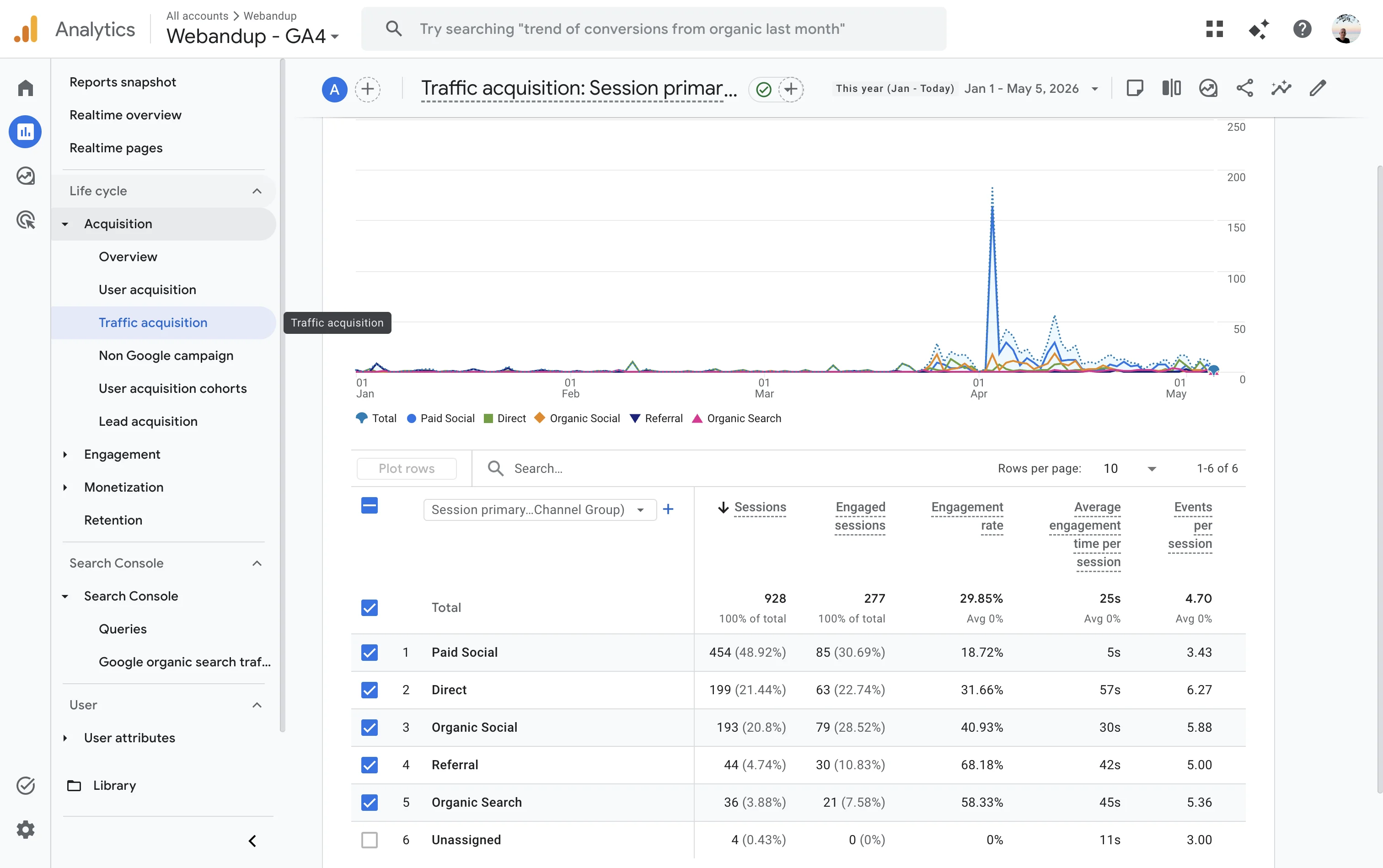
The table shows the 'Session default channel group' dimension by default. To see AI sources, click on the first column header and select 'Session source' from the dropdown menu.
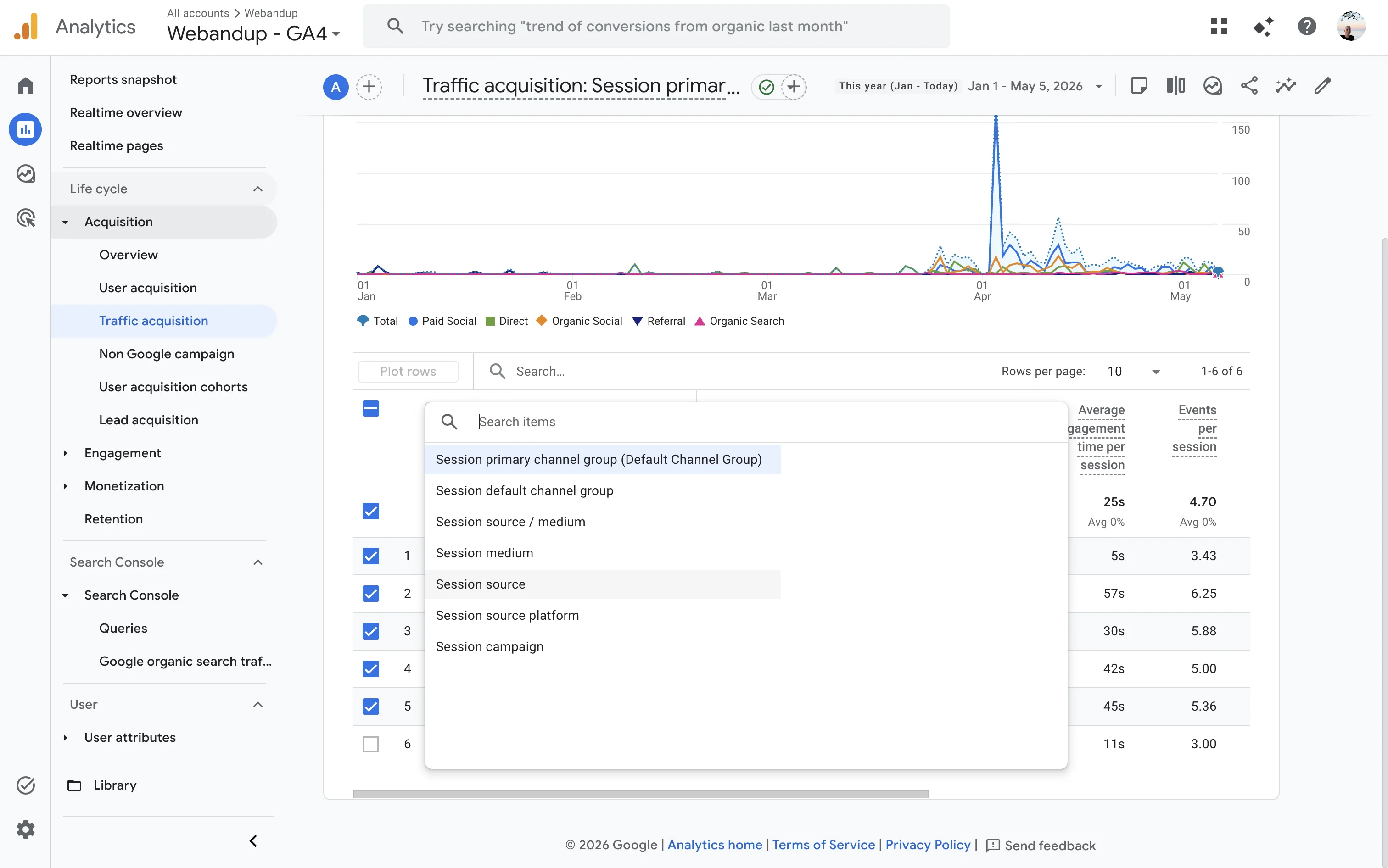
Once the dimension is changed, the table updates and you can see sources by domain name. If you receive traffic from claude.ai, chatgpt.com or perplexity.ai, they will appear here. If they don't appear yet, the volume may be too low for the selected date range, or your website may not yet be cited by AI tools.
Method 2: Custom Segment in Explore
This method creates a reusable segment you can apply in any GA4 exploration. It takes about 5 minutes to set up, and then the data is always available.
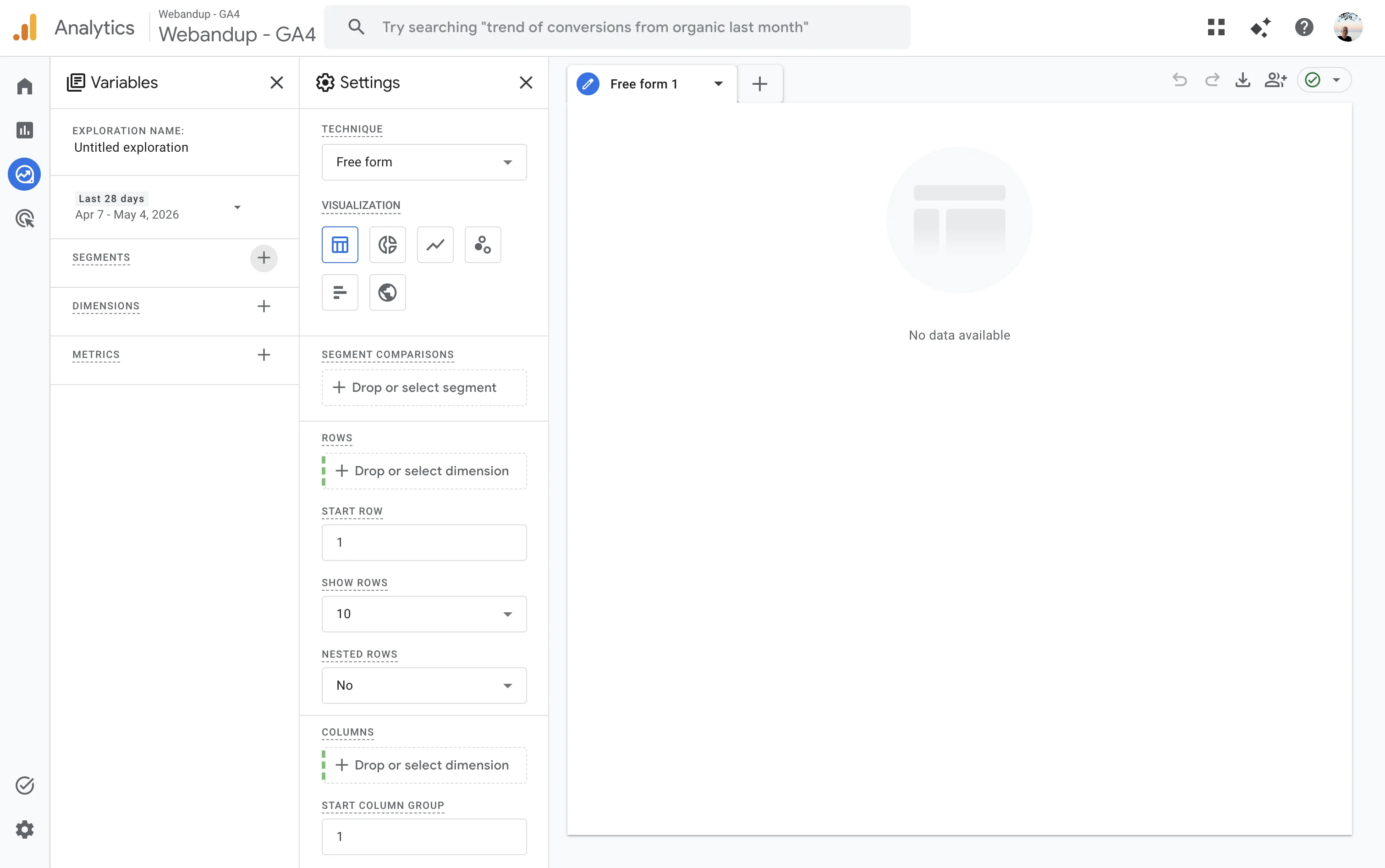
Step 1: open Explore and create a blank exploration
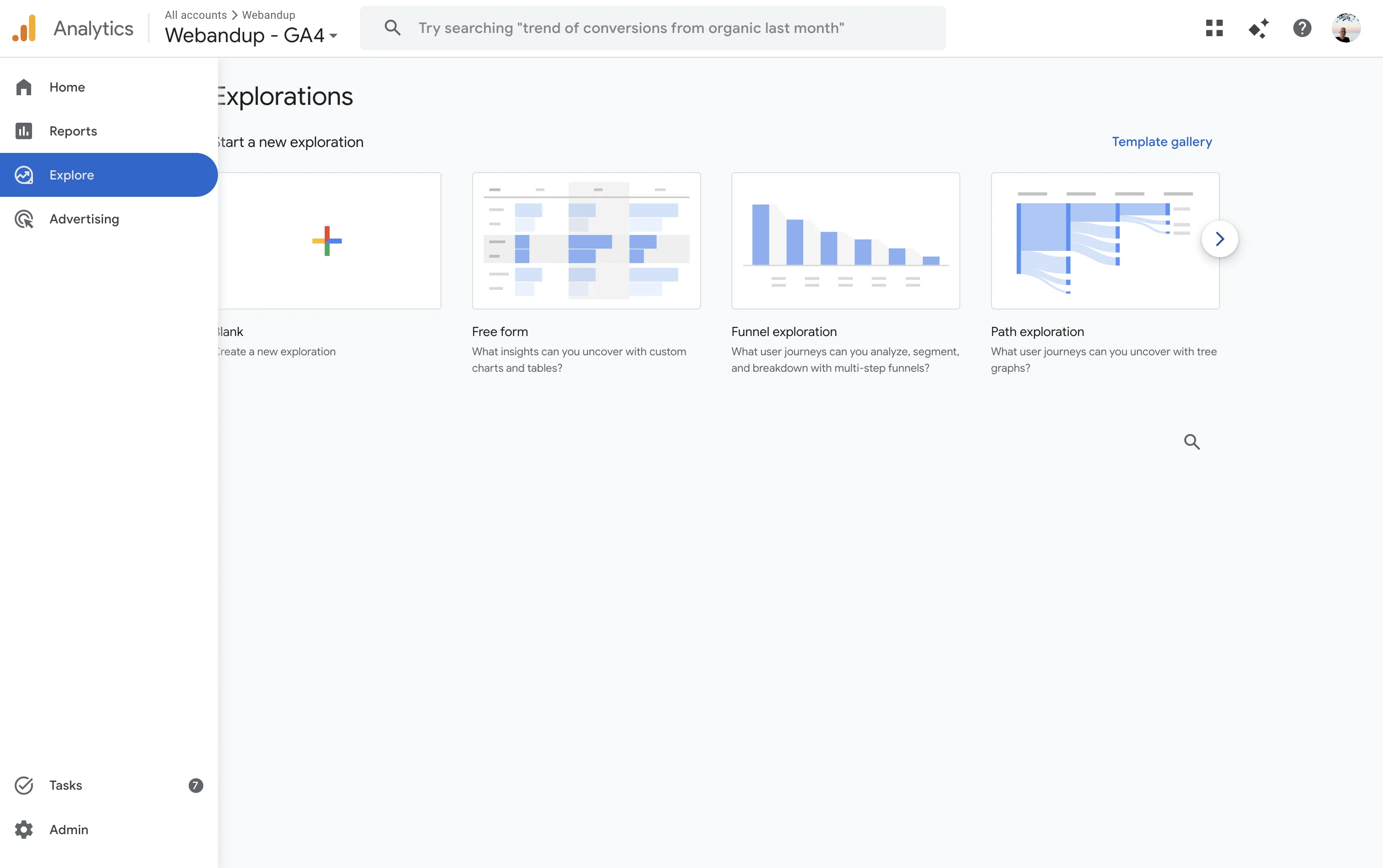
In the GA4 left menu, click 'Explore'. You'll see the exploration type gallery. Select 'Free form' to get started.
Step 2: add the AI Traffic segment
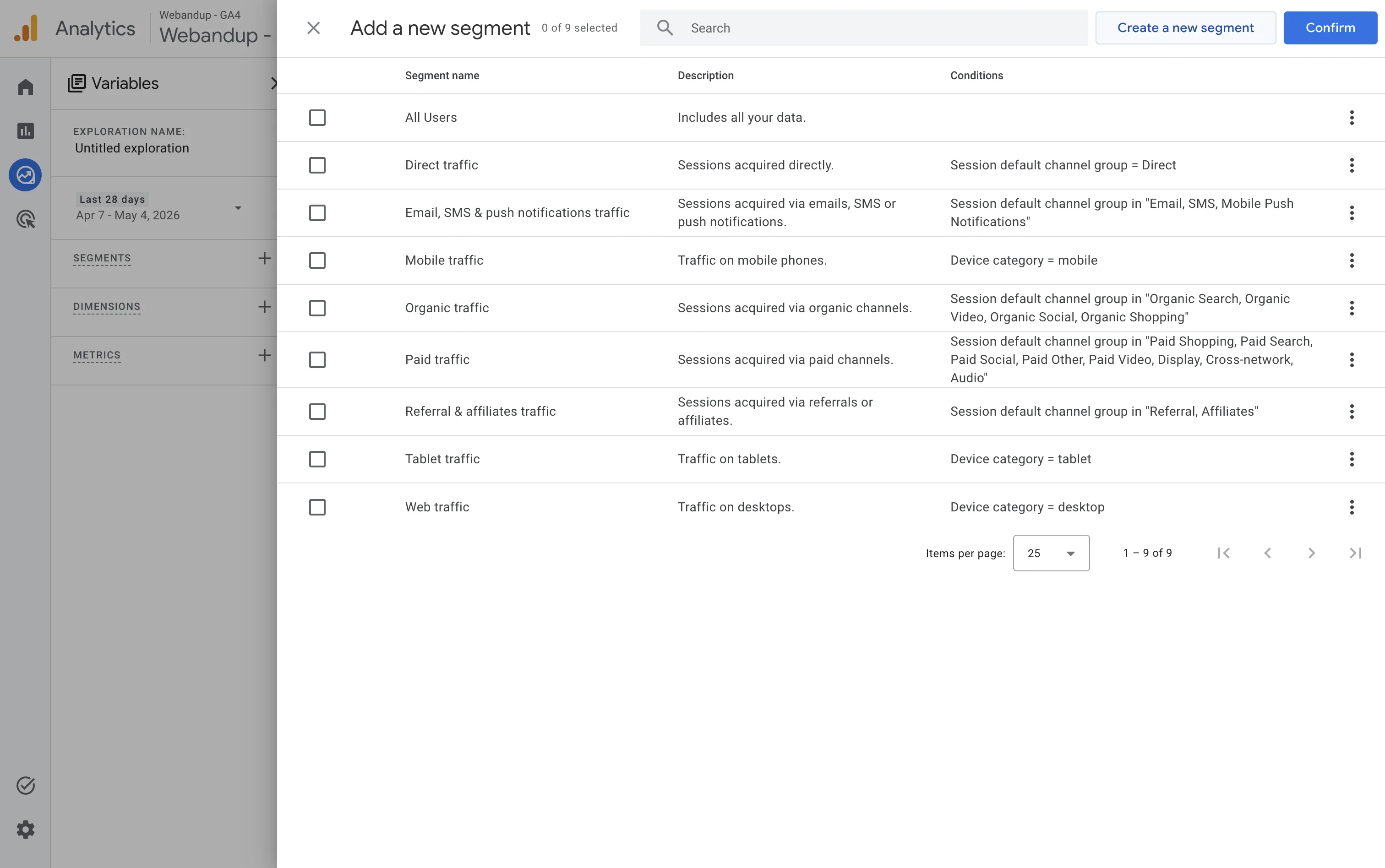
In the left panel, click '+' next to 'Segments'. A list of predefined segments will open. Ignore the list and click the 'Create a new segment' button in the top right corner.
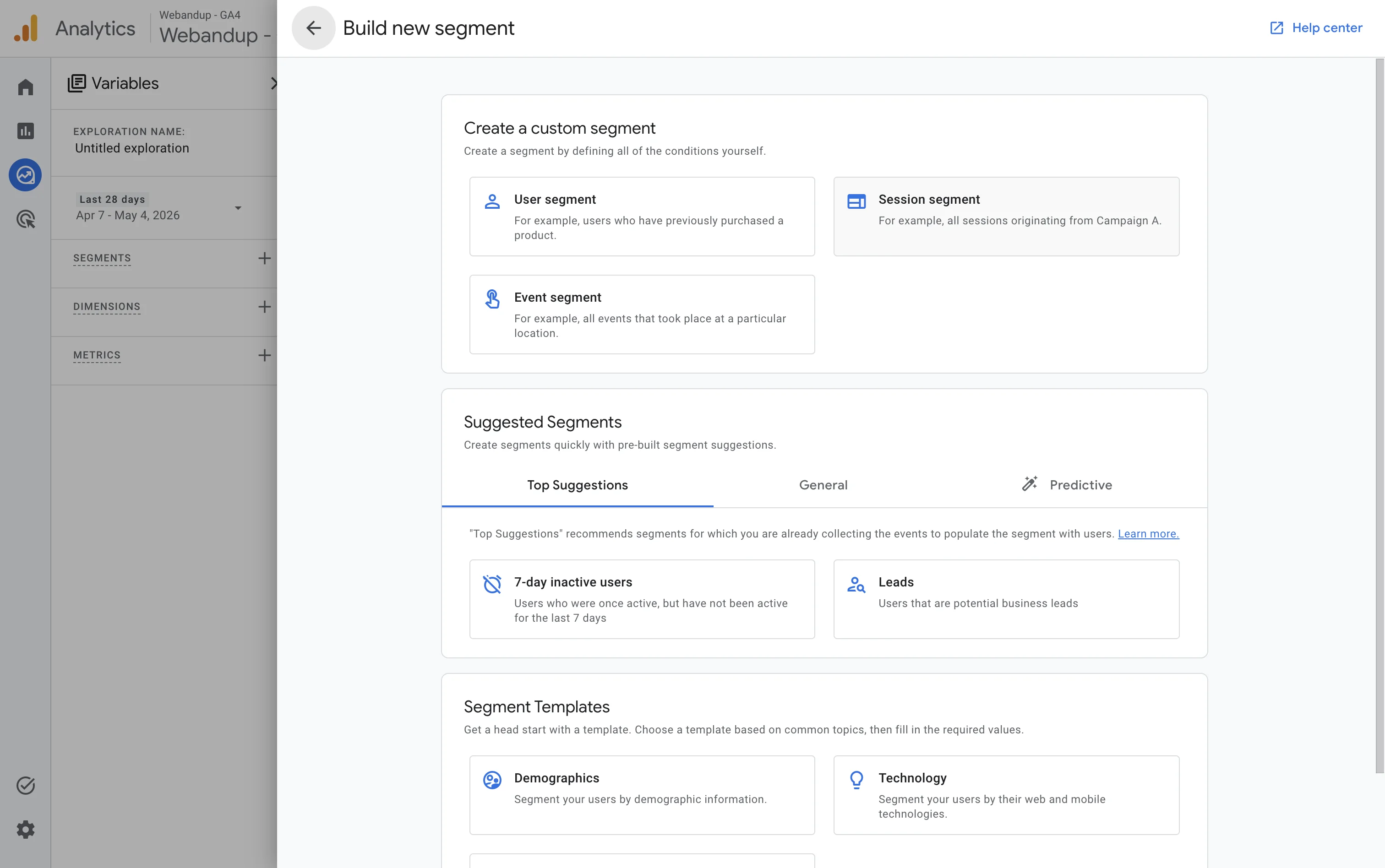
The 'Build new segment' screen appears. Select 'Session segment' to filter by visit origin.
Step 3: add the Session source condition
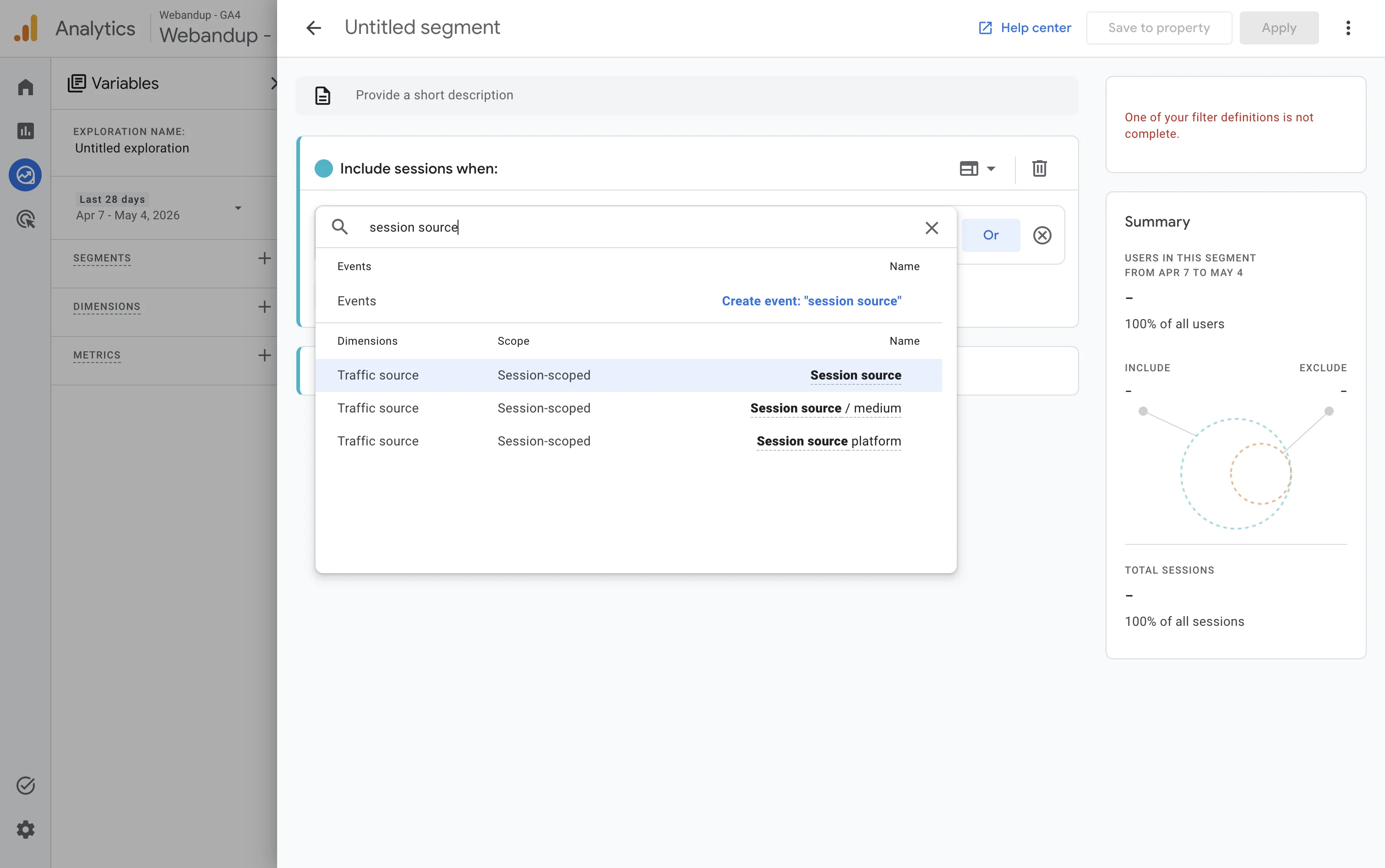
In the segment builder, in the 'Include sessions when' field, click the '+ Add filter' button. Type 'session source' in the search box and select 'Session source' (Traffic source, Session-scoped).
Step 4: set up the filter with a regular expression
With 'Session source' selected, change the condition from 'contains' to 'matches regex' and type this expression in the text field:
- claude\.ai|chatgpt\.com|perplexity\.ai|copilot\.microsoft\.com|you\.com|phind\.com
Copy that expression exactly as written, with the escaped dots (backslash before the dot). The right panel will show the segment summary updating in real time, showing the percentage of sessions that match.
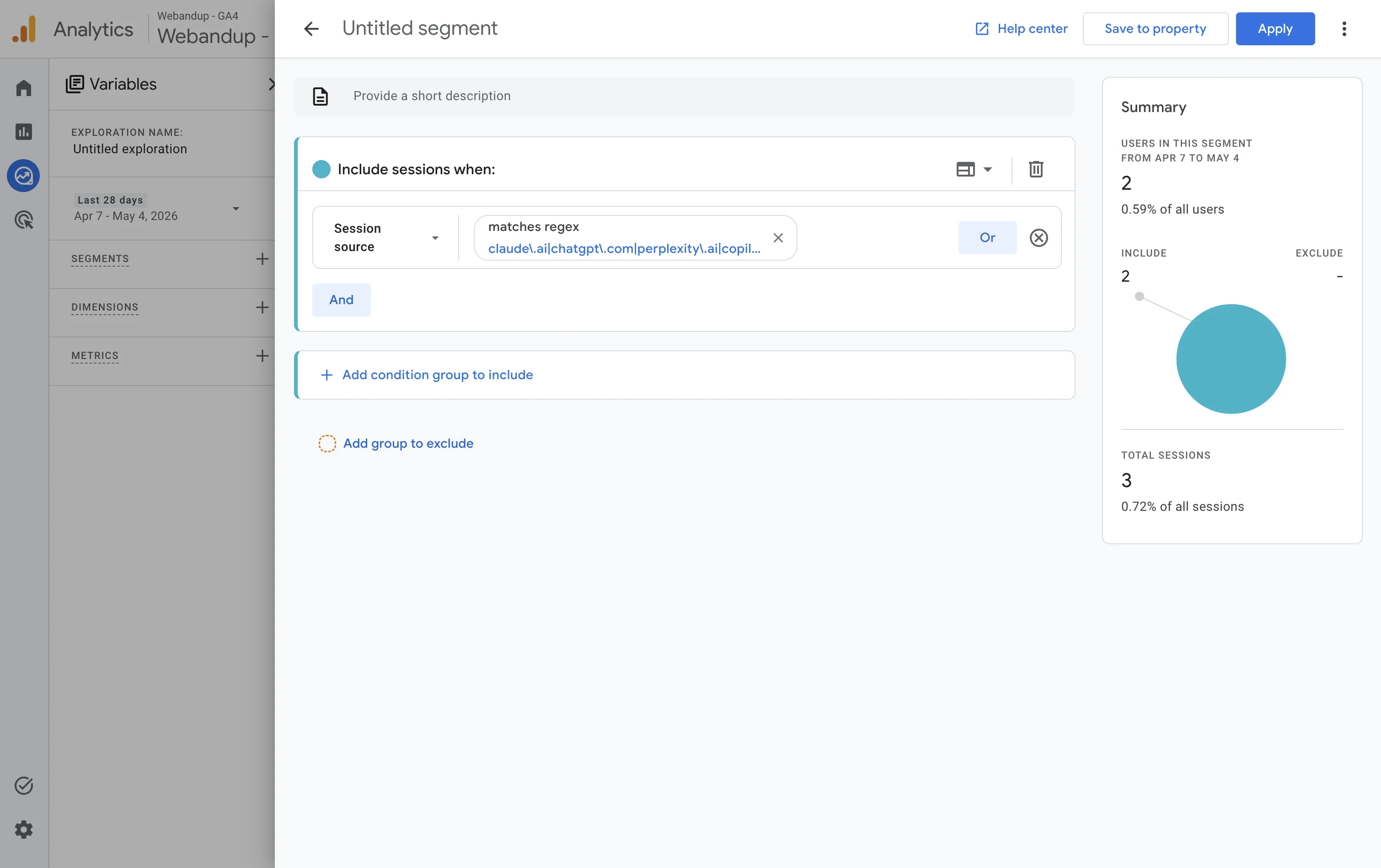
Click 'Apply' to save the segment and return to the exploration. Give it a descriptive name like 'AI Traffic' before saving.
Step 5: add dimensions and metrics
With the segment applied, you need to add the dimension and metrics before dragging them to the table. In the left panel:
- Click '+' next to 'Dimensions' and add 'Session source'
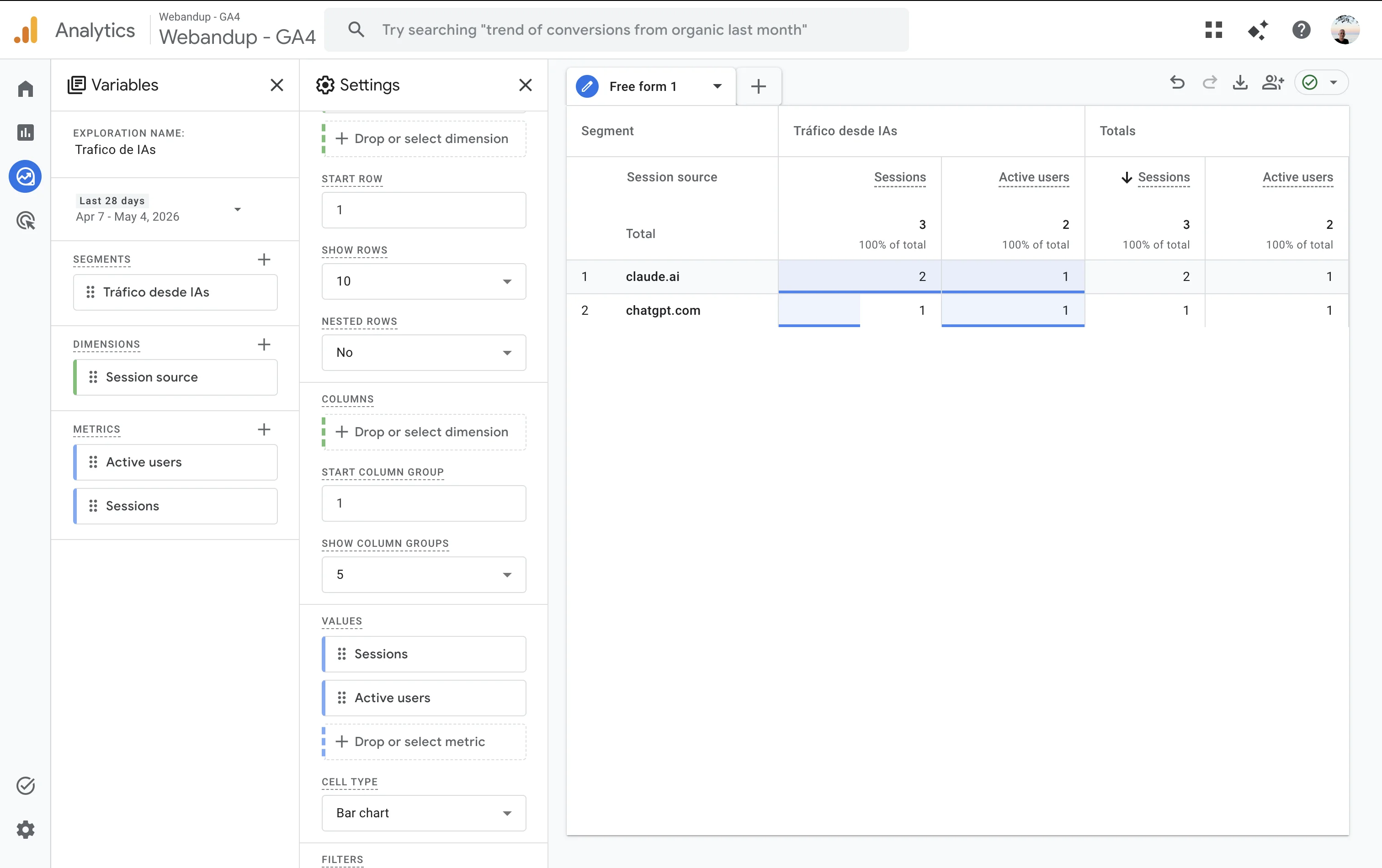
- Click '+' next to 'Metrics' and add 'Sessions' and 'Active users'
Then drag 'Session source' to the 'Rows' field in the center configuration column, and drag 'Sessions' and 'Active users' to the 'Values' field. The table will update showing each AI source separately.
| Aspect | Method 1: Traffic acquisition | Method 2: Segment in Explore |
|---|---|---|
| Setup time | About 2 minutes | About 5 minutes |
| Where in GA4 | Reports, Life cycle, Acquisition, Traffic acquisition | Explore, Free form, Segments |
| What you change | The primary dimension to 'Session source' | A session segment with a regex of AI domains |
| What you get | All sources by domain, with AI mixed in with everything else | Only AI sessions, with sessions and active users per source |
| Best for | A quick one-time check | Tracking the trend over time with a reusable segment |
What numbers are normal
If you just set this up and see 0 or 1 sessions from AI tools, that's completely normal. AI traffic on service and agency websites is between 0.5% and 3% of total traffic for most sites in 2026. Only sites heavily referenced in AI responses (like technical documentation, media outlets, or brands with strong presence in models' training data) exceed that percentage.
What matters is not the volume, but the trend. A website that appears in Claude or Perplexity responses today could be receiving 10x more volume in 12 months. That's why it makes sense to start measuring it now.
Why you don't appear in AI results and what to do
If you see nothing in the segment, there are specific reasons and solutions for each:
- Your website has low domain authority: AI tools prioritize sources with more external references. Work on getting mentions in press, directories and industry blogs.
- Your content doesn't answer specific questions: language models cite pages that directly answer a question. Well-structured blog articles with clear H2 headings work much better than generic service pages.
- You don't have an llms.txt file: some AI tools read this file to understand what your website is about. You can add one at the root of your domain with a summary of your business and main pages.
- Your website loads slowly or has technical errors: AI crawlers penalize sites with high load times or frequent 404 errors.
- The analyzed date range is too short: expand the GA4 filter to 90 days or more to have representative data.
Frequently asked questions
How do I get ChatGPT to recommend my business?
AI tools cite pages that directly answer a specific question, so well-structured articles with clear headings work better than a generic services page. Authority matters too: mentions in press, directories and industry blogs. The technical side also counts, since slow pages or frequent 404 errors are harder for AI crawlers to read.
What is an llms.txt file?
It is a plain text file placed at the root of your domain with a summary of your business and links to your main pages, meant to help AI models understand what your site is about. It is a proposal, not an official standard, and only some AI tools read it. It is cheap to add, but on its own it will not get you recommended.
Why does ChatGPT traffic show up as Direct in GA4?
GA4 can only attribute a visit to ChatGPT when the user clicks a link inside the AI interface. If they copy the link from the answer and paste it into a new tab, the visit arrives with no referrer and GA4 counts it as Direct. That means the AI traffic you see in GA4 is always lower than the real number.
Do AI crawlers show up in Google Analytics?
No. Google Analytics counts visits from browsers that run its tracking code, and AI crawlers usually just download the HTML. To see them you need your server or CDN logs, filtered by user agents such as GPTBot or ChatGPT-User. For example, between September 4 and 24, 2026, the crawler log for hexagonize.com recorded 517 visits from AI bots and 14 ChatGPT page reads made right after a user asked it something.
Want AI models to recommend your site? We set up your presence so ChatGPT, Perplexity, and others cite you when your clients search.